¶ How to Install ACR Server
¶ Bahan-bahan
- ISO Redhat 7 atau Centos 7
- File ks (kickstart file)
- installer ACR 12.1.0
¶ persiapan
sebelum di mulai, pastikan kita punya semua bahan di atas!
¶ 1. persiapan ks (kickstart file)
berikut ini contoh kickstart file :
install
cdrom
lang en_US.UTF-8
keyboard --vckeymap=us --xlayouts=us
#
# Configure the NIC - comment this line out if using bonded NIC
network --device=ens192 --bootproto=static --ip=172.18.115.214 --netmask=255.255.255.0 --gateway=172.18.115.254 --nameserver=172.18.115.254 --hostname=ccacr02
# To add additional NIC(s), uncomment, copy if necessary and edit the line below
# Note that the additional devices must not be in the same subnet as the first NIC nor each other - use bonding to achieve that
#network --device=eth1 --bootproto=static --ip=10.10.10.123 --netmask=255.255.255.0
#
# To bond multiple NICs, uncomment and edit the following line and comment out the network line above (RHEL 7 only)
#network --device=bond0 --bondslaves=eth0,eth1 --bootproto=static --ip=172.18.115.214 --netmask=255.255.255.0 --gateway=172.18.115.254 --nameserver=172.18.115.254 --hostname=ccacr02
# Note: you will probably have to delete the following files after first boot: /etc/sysconfig/network-scripts/ifcfg-ens1 (or whatever the raw device is). Leave the ifcfg-bond0* files
#
rootpw P@ssw0rd
#auth --useshadow --passalgo=sha512
firewall --disabled
selinux --disabled
firstboot --disabled
timezone Asia/Jakarta --utc --ntpservers=172.18.115.241
services --enabled chronyd --disabled cups
#
# Disk partitions....
#
bootloader --location=mbr
clearpart --all --initlabel
#
# The default one disk (or RAID array) partitioning - *without* volgroup
# If there is more than one disk, either add --ondisk=xxx to each of the partitions or use the volgroup example below instead
# Edit partition sizes as desired to meet the minimums in the installation manual
#
part /boot --fstype=ext4 --size=500 --ondisk=sda
part / --fstype=ext4 --size=10000 --ondisk=sda
part /opt/witness --fstype=ext4 --size=10000 --ondisk=sda
part /var/lib/pgsql --fstype=ext4 --size=10000 --ondisk=sda
part  swap --recommended --ondisk=sda
part /calls --fstype=ext4 --size=1000 --grow --ondisk=sdb
#
# The alternative partitioning scheme using volgroup - to use, comment out the above, uncomment this and change the ondisk names as appropriate
#
#part /boot --fstype=ext4 --size=200 --ondisk=sda
#part pv.01 --size=1 --grow --ondisk=sda
#part pv.02 --size=1 --grow --ondisk=sdb
#volgroup acrvg pv.01 pv.02
#logvol swap --recommended --vgname=acrvg --name=swap
#logvol / --fstype=ext4 --size=5000 --vgname=acrvg --name=root
#logvol /opt/witness --fstype=ext4 --size=10000 --vgname=acrvg --name=witness
#logvol /var/lib/pgsql --fstype=ext4 --size=10000 --vgname=acrvg --name=postgres
#logvol /calls --fstype=ext4 --size=1000 --grow --vgname=acrvg --name=calls
#
#
user --name=witness --homedir=/home/witness --password=P@ssw0rd --uid=501 --groups=cdrom
%packages
@ base
@ core
#@ x11
#@ fonts
#@ internet-browser
#@ gnome-desktop
perl
mkisofs
perl-libwww-perl
chrony
tigervnc-server
-redhat-lsb
-ash
-aspell
-cups
-cups-libs
-finger
-irda-utils
-lftp
-mtr
-nano
-nc
-pax
-pdksh
-rdate
-redhat-config-network-tui
-rp-pppoe
-rsh
-jfsutils
-jwhois
-setuptool
-sendmail
-sharutils
-stunnel
-tftp
-wireless-tools
-rdist
-openoffice-libs
-cyrus-sasl-gssapi
-cyrus-sasl-plain
-wvdial
-dvd+rw-tools
%end
%post
/bin/chown witness.witness /calls
/bin/echo "witness soft nproc 4096" >> /etc/security/limits.conf
/bin/echo "Created 12.1j" > /etc/ksversion
%end
silakan di copas dan di edit sesuai kebutuhan.
yang perlu di perhatikan saat edit file ks adalah:
- bagian network :
network --device=ens192 --bootproto=static --ip=172.18.115.214 --netmask=255.255.255.0 --gateway=172.18.115.254 --nameserver=172.18.115.254 --hostname=ccacr01. pastikan device name = device name dari installer. untuk mengetaui device name yang benar, bisa dengan cara menjalankan installer linux secara normal, kemudian di bagian network, enable device, setelah itu device name akan muncul, misalnya ens64, ens192, eth0 dan sebagainya - bagian assign password root :
rootpw P@ssw0rd - bagian partition /calls :
part /calls --fstype=ext4 --size=1000 --grow --ondisk=sdb
pada bagian partition /calls pastikan --ondisk= "device yang benar" dalam contoh kita menggunakan sdb, sbd = disk ke-2. dengan memberi directive seperti ini, installer akan membuat partisi /calls di sdb. sebelumnya mohon di pastikan kita membuat vm yang sudah mempunyai 2 hdd
¶ 2. create VM
silahkan buat vm dengan ketentuan sebagai berikut:
- 4 core cpu
- 4 GB ram
- 40 GB, Hdd1
- 500 GB, Hdd2
untuk hdd, jgn lupa pilih thin provisioning
¶ Install OS dengan ISO dan ks yang sudah di buat
¶ 1. publish file ks di web server
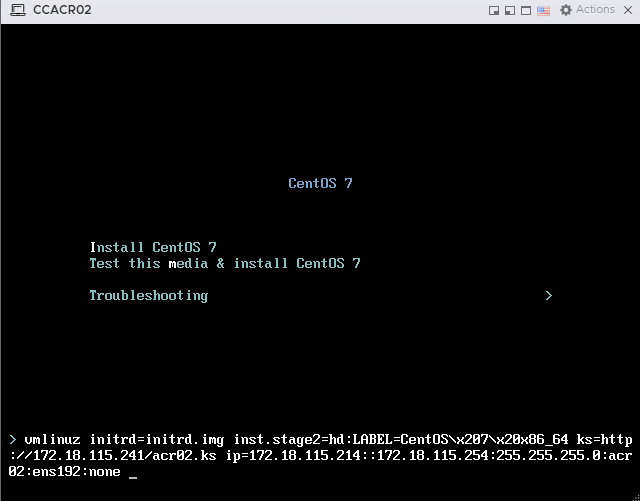
installer linux bisa mengakses file ks dari webserver dengan menambahkan "ks=http://xxxx" pada boot option, jadi file ks dalam contoh ini sudah di publish ke http://172.18.115.241/acr02.ks
¶ 2. power up vm dan install
silakan power up vm yang sudah di create sebelumnya, pada pilihan installer tekan "tab" di keyboard untuk menampilkan boot option
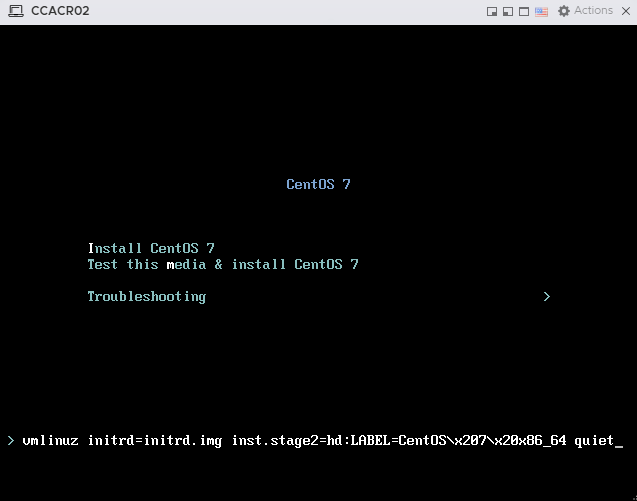
delete option "quiet" dan tambahkan boot option : ks=http://172.18.115.241/acr02.ks ip=172.18.115.214::172.18.115.254:255.255.255.0:acr02:ens192:none
tunggu proses install selesai
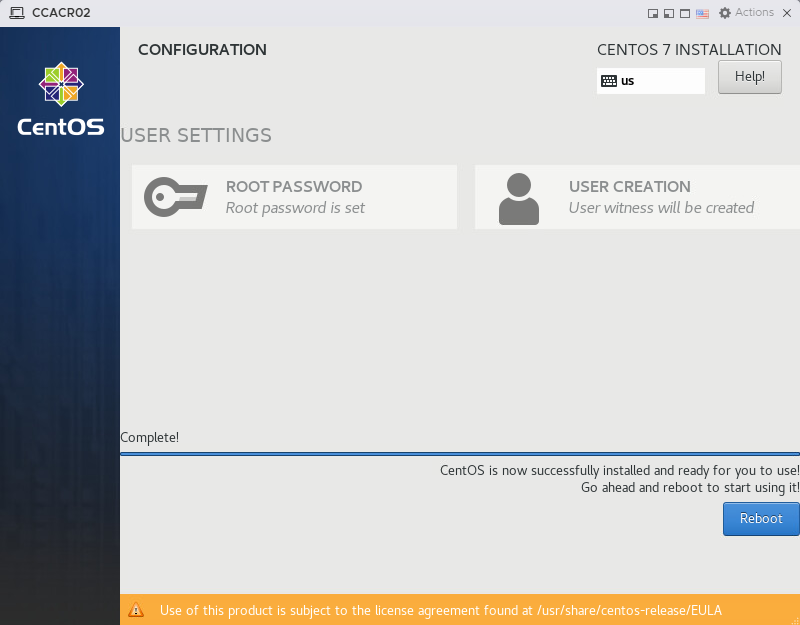
reboot server
¶ Install Aplikasi Server ACR (cscm)
-
pastikan setelah install OS, kita bisa akses server nya melalui ssh
-
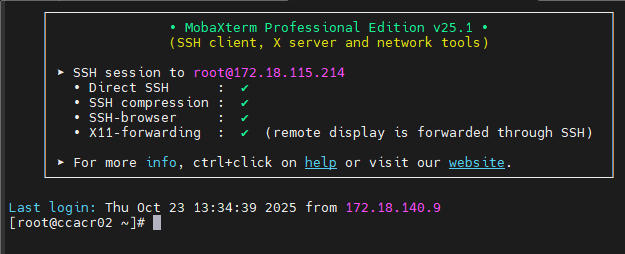
connect dengan putty atau yang lain melalui ssh ke server ACR
-
login dengan user root
-
pastikan hostname sesuai dengan yang di set di kickstart file
-
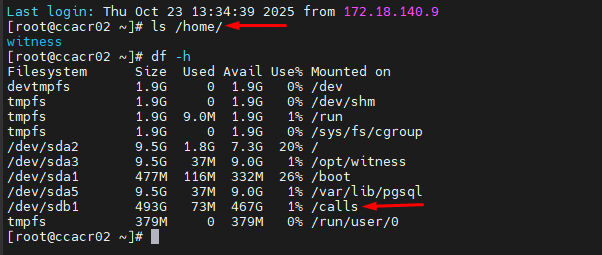
pastikan server mempunyai folder /home/witness
-
pastikan server mempunyai partisi /dev/sdb yang di mount di /calls
-
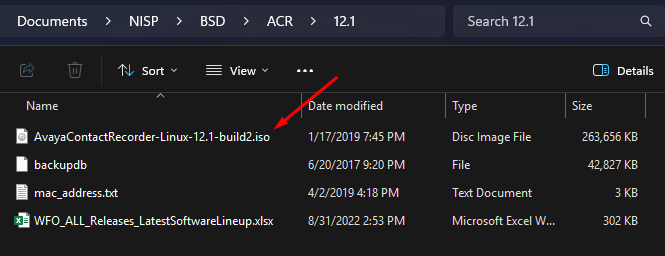
extract installer acr atau mount iso di windows explorer
-
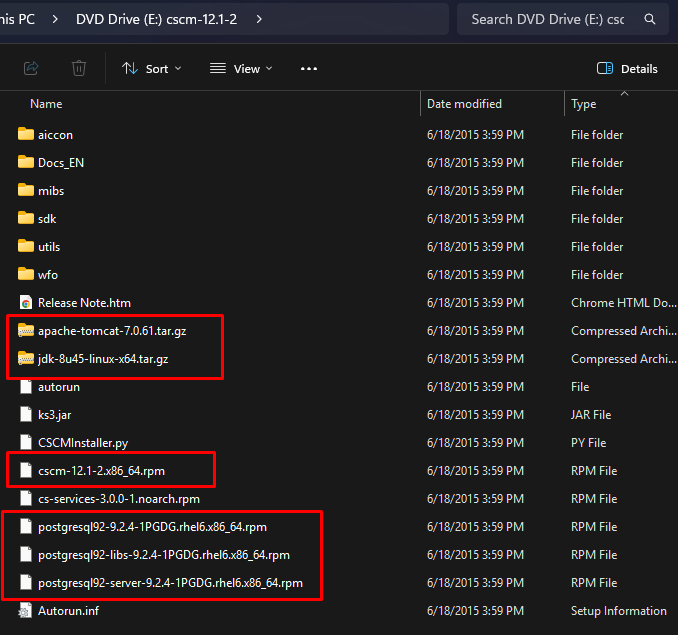
setelah di mount atau di extract, copy file di bawah ini ke server acr, simpan di folder /home/witness
-
bisa menggunakan filezilla client untuk meng-upload file-file di bawah ini
-- apache-tomcat-7.0.61.tar.gz
-- jdk-8u45-linux-x64.tar.gz
-- postgresql92-libs-9.2.4-1PGDG.rhel6.x86_64.rpm
-- cscm-12.1-2.x86_64.rpm
-- postgresql92-9.2.4-1PGDG.rhel6.x86_64.rpm
-- postgresql92-server-9.2.4-1PGDG.rhel6.x86_64.rpm -
setelah file tersebut ter upload, jalankan perintah dibawah untuk memulai installasi:
- install cscm
rpm -Uvh /home/witness/cscm-12.1-2.x86_64.rpm

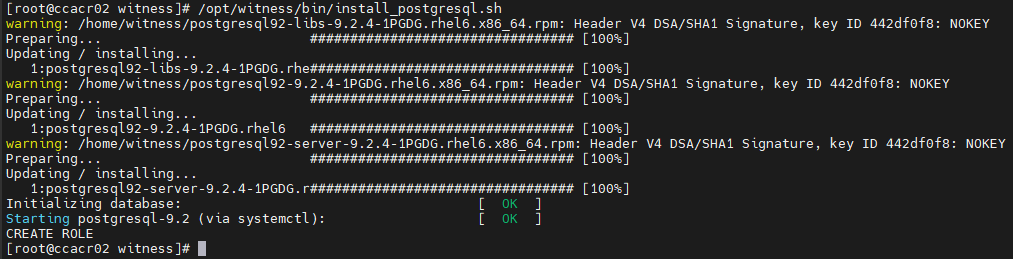
- install postgres
/opt/witness/bin/install_postgresql.sh
- install jdk
[root@ccacr02 witness]# /opt/witness/bin/install_java.sh
jdk1.8.0_45/
jdk1.8.0_45/jre/
jdk1.8.0_45/jre/THIRDPARTYLICENSEREADME.txt
jdk1.8.0_45/jre/plugin/
jdk1.8.0_45/jre/plugin/desktop/
jdk1.8.0_45/jre/plugin/desktop/sun_java.png
jdk1.8.0_45/jre/plugin/desktop/sun_java.desktop
jdk1.8.0_45/jre/THIRDPARTYLICENSEREADME-JAVAFX.txt
...
- install tomcat
[root@ccacr02 witness]# /opt/witness/bin/install_tomcat.sh
apache-tomcat-7.0.61/bin/catalina.sh
apache-tomcat-7.0.61/bin/configtest.sh
apache-tomcat-7.0.61/bin/daemon.sh
apache-tomcat-7.0.61/bin/digest.sh
apache-tomcat-7.0.61/bin/setclasspath.sh
apache-tomcat-7.0.61/bin/shutdown.sh
apache-tomcat-7.0.61/bin/startup.sh
apache-tomcat-7.0.61/bin/tool-wrapper.sh
apache-tomcat-7.0.61/bin/version.sh
...
- perbaiki owner folder /opt/witness
- sebelum dilakukan perbaikan owner :
[root@ccacr02 witness]# cd /opt/witness/
[root@ccacr02 witness]# ls
bin  ema  java  keystore  lib64  logs  lost+found  properties  temp  tomcat7  wav
[root@ccacr02 witness]# ll
total 56
drwxr-xr-x   2 witness witness  4096 Oct 23 14:00 bin
drwxr-xr-x   6 witness witness  4096 Oct 23 14:00 ema
drwxr-xr-x   3 root    root     4096 Oct 23 14:02 java
drwxr-xr-x   3 witness witness  4096 Oct 23 14:00 keystore
drwxr-xr-x   2 witness witness  4096 Oct 23 14:00 lib64
drwxr-xr-x   2 witness witness  4096 Jun 18  2015 logs
drwx------.  2 root    root    16384 Oct 21 14:35 lost+found
drwxr-xr-x   3 witness witness  4096 Oct 23 14:00 properties
drwxr-xr-x   3 root    root     4096 Oct 23 14:03 temp
drwxr-xr-x  10 root    root     4096 Oct 23 14:03 tomcat7
drwxr-xr-x   2 witness witness  4096 Oct 23 14:00 wav
- lakukan perintah :
chown -R witness.witness /opt/witness/
[root@ccacr02 witness]# chown -R witness.witness /opt/witness/
[root@ccacr02 witness]# ls -l
total 56
drwxr-xr-x   2 witness witness  4096 Oct 23 14:00 bin
drwxr-xr-x   6 witness witness  4096 Oct 23 14:00 ema
drwxr-xr-x   3 witness witness  4096 Oct 23 14:02 java
drwxr-xr-x   3 witness witness  4096 Oct 23 14:00 keystore
drwxr-xr-x   2 witness witness  4096 Oct 23 14:00 lib64
drwxr-xr-x   2 witness witness  4096 Jun 18  2015 logs
drwx------.  2 witness witness 16384 Oct 21 14:35 lost+found
drwxr-xr-x   3 witness witness  4096 Oct 23 14:00 properties
drwxr-xr-x   3 witness witness  4096 Oct 23 14:03 temp
drwxr-xr-x  10 witness witness  4096 Oct 23 14:03 tomcat7
drwxr-xr-x   2 witness witness  4096 Oct 23 14:00 wav
- start service cscm dengan perintah :
service cscm start
[root@ccacr02 witness]# service cscm start
Starting CSCM...
[root@ccacr02 witness]#
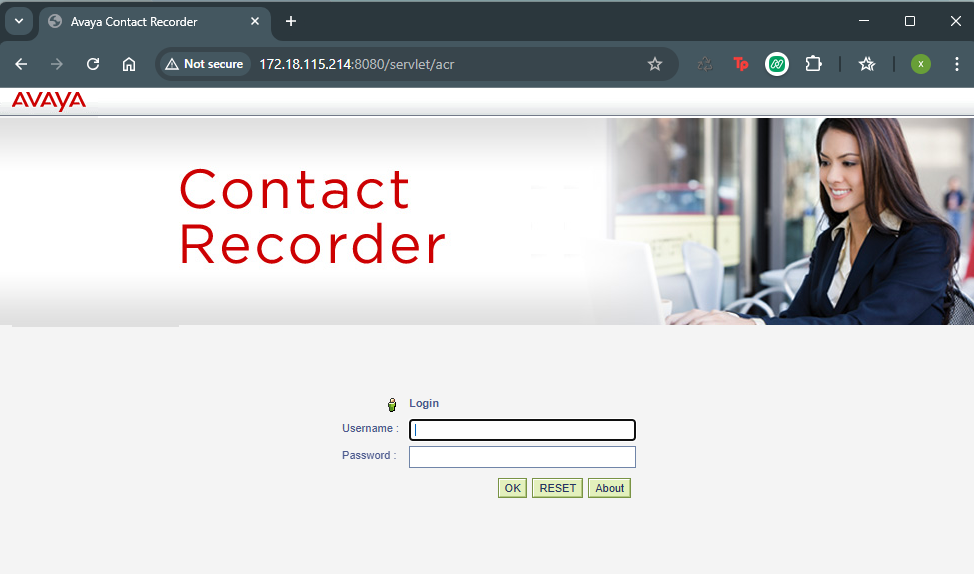
- Verify instalasi selesai, buka web interface acr melalui:
- http://172.18.115.214:8080
- atau https://172.18.115.214:8443
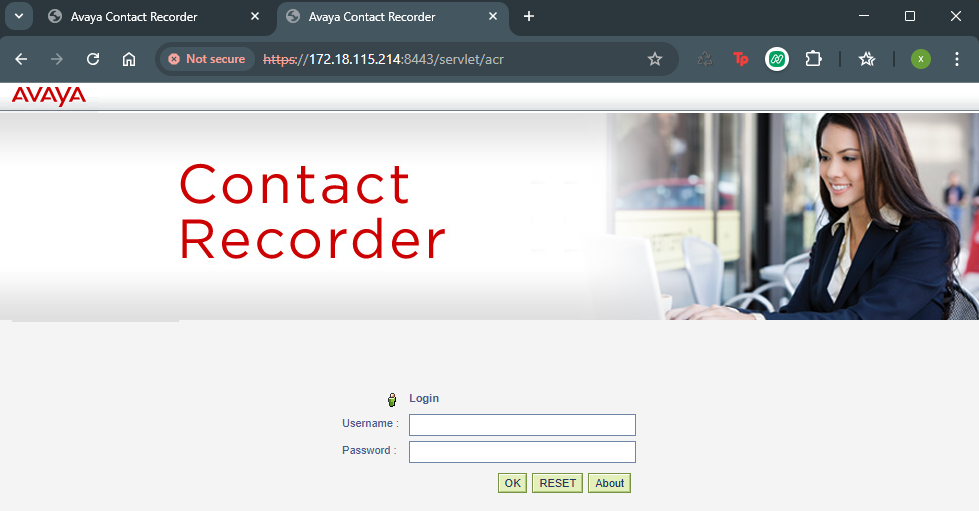
untuk pertama kali, login dengan username : admin, tidak menggunakan password (langsung enter atau klik login)
system akan meminta kita untuk mengganti password
kolon old password : kosongkan
new password : isikan password yang di mau
- setelah login, kita akan di bawa ke halaman license
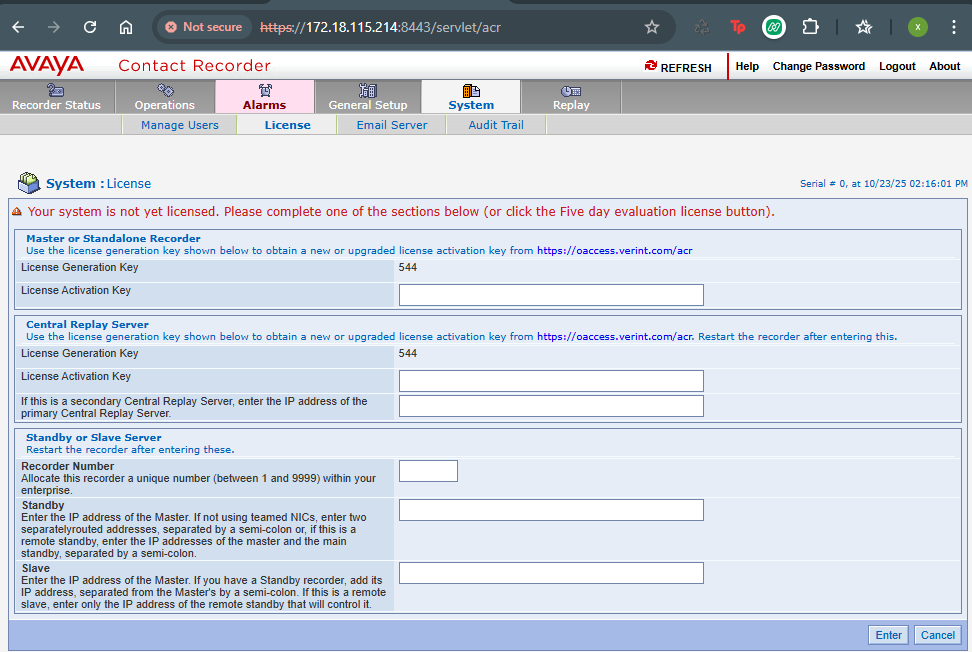
pada halaman ini kita perlu meminta license ke avaya