Configure AMS for WebRTC Connect
¶ Deployment
- Obtain the Avaya Aura Media Server OVA (Open Virtual Appliance) file from the Avaya website.
- Use System Deployment Manager (SDM) or your virtualization environment (e.g., VMware) to deploy the OVA, assigning a friendly name, IP address, network details, and user credentials.
  Media Server IP address = 172.30.2.35
    Short Hostname = webrtcawg
    Network Domain = wahana.com
    Media Server Netmask = 255.255.255.0
    Default Gateway = 172.30.2.1
    DNS Servers = 172.30.1.4
    Timezone = Asia/Jakarta
    NTP Servers =
    Media Server IPv6 Address =
    IPv6 Prefix Length = 64
    IPv6 Gateway Address =
    Autoconfigure IPv6 = no
    Out of Band Management IPv4 Address =
    Out of Band Interface Netmask =
    (Optional) Out of Band Interface Default Gateway =
    Login Name = admin
    Interactive Inital Boot = yes
- Log in to the new AMS instance to verify the deployment and change default passwords.
https://AMSIPADDRESS:8443/emlogin
default password on first login:
user : admin
pass : Admin123$
- Enroll with System Manager:
The enroll process described on this document : Enroll Avaya Media Server
¶ Configuration
¶ Configure Media Processing
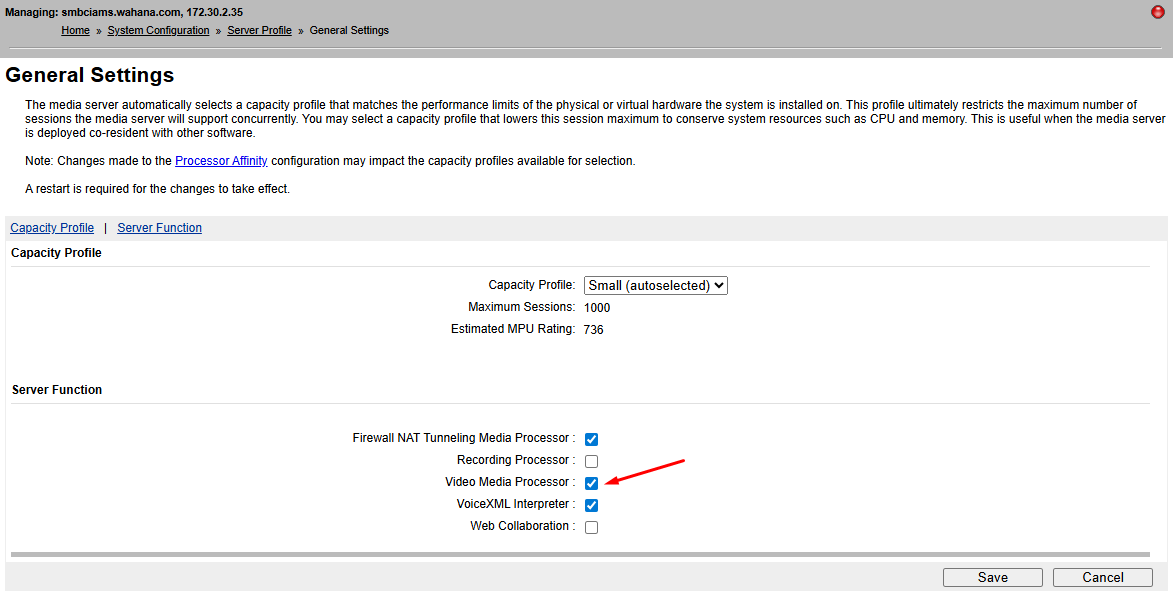
In the AMS Element Manager, navigate to System Configuration > Server Profile > General Settings
Select Firewall NAT Tunneling Media Processor and Video Media Processor and save the settings
¶ Enable Video media processing
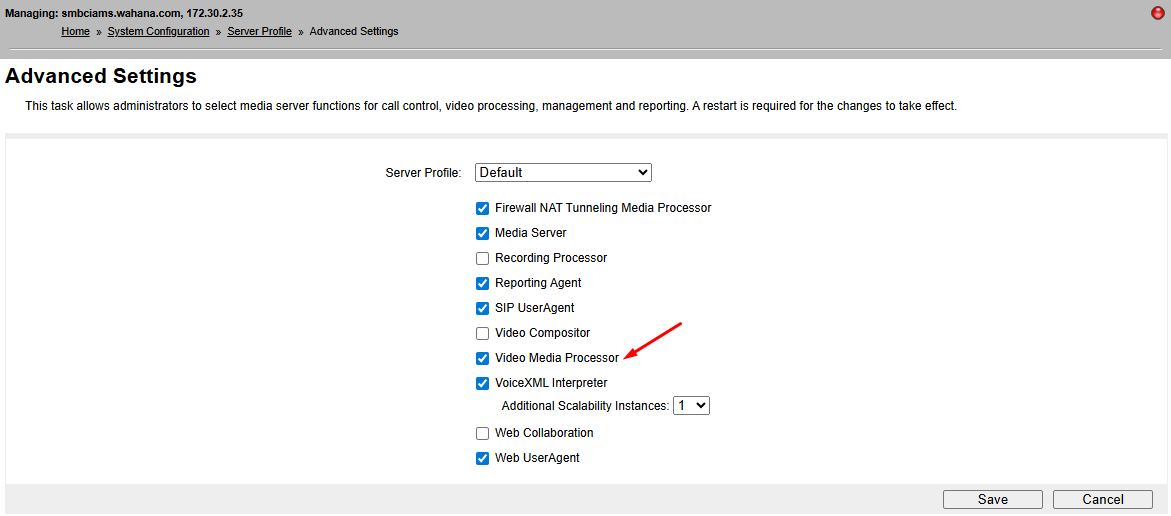
In the AMS Element Manager, navigate to System Configuration > Server Profile > Advanced Settings
Select Video Media Processor and save settings
¶ Set Element administrative name
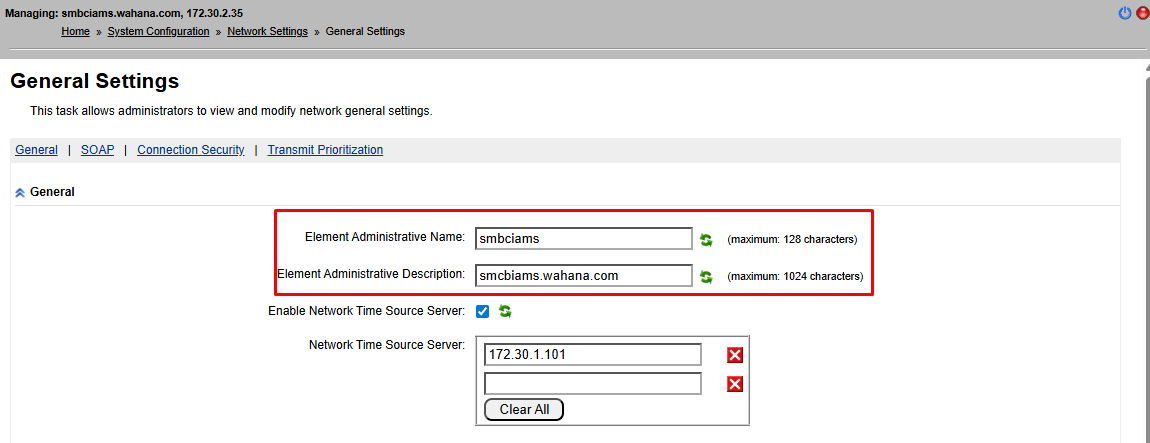
In the AMS Element Manager, navigate to System Configuration > Network setting > General Settings > General
set element administrative name and description
¶ Set Trust Node
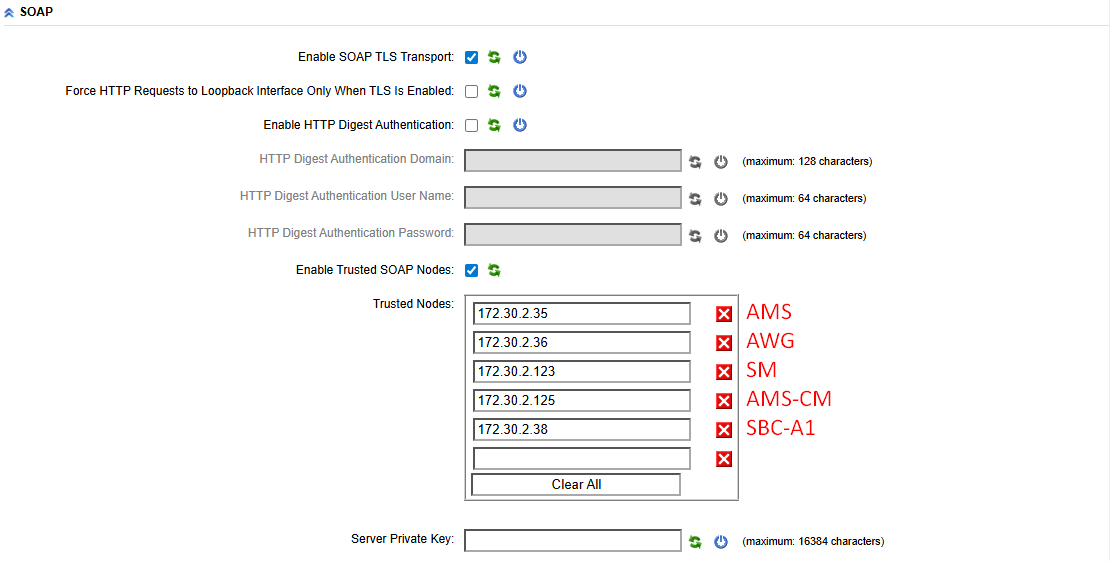
In the AMS Element Manager, navigate to System Configuration > Network setting > General Settings > General
SOAP Settings, set trusted nodes to trust all AMS, AWG, SM100, SBC-A1
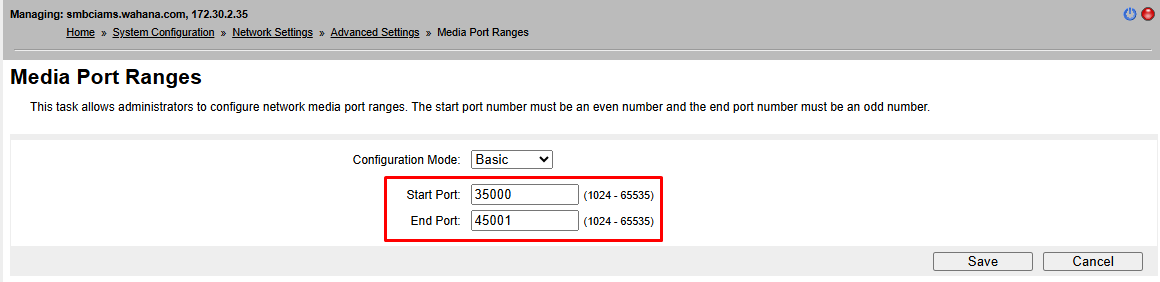
¶ Set Media port ranges
In the AMS Element Manager, navigate to System Configuration > Network setting > Advanced Settings > Media Port ranges
set start port and end port
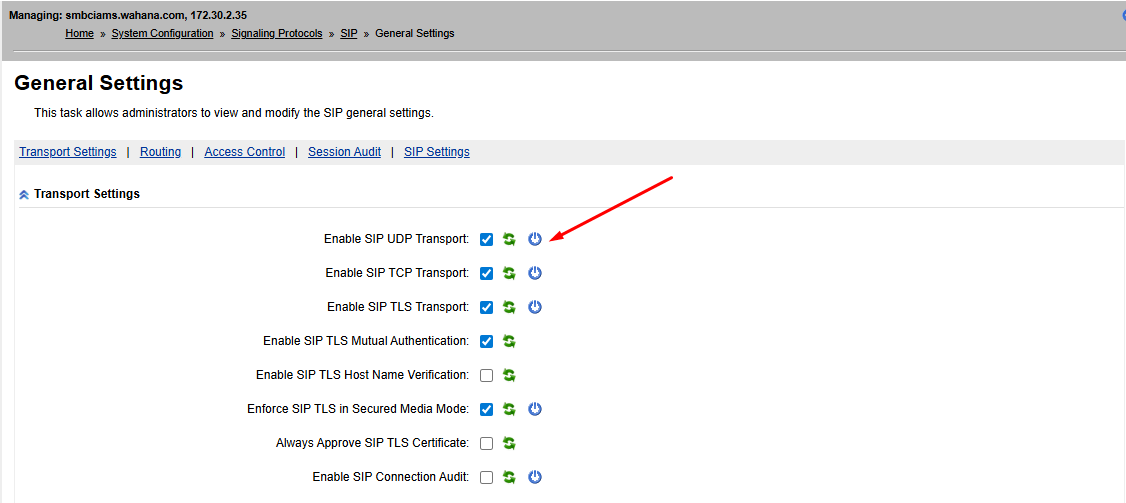
¶ Enable UDP Transport
In the AMS Element Manager, navigate to System Configuration > Signaling Protocols > SIP > General Settings
Enable SIP UDP Transport
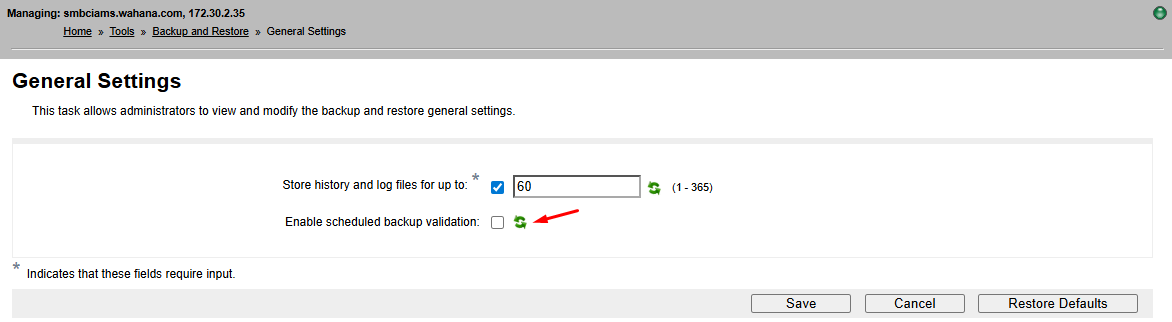
¶ Disable backup schedule validation
In the AMS Element Manager, navigate to Tools > Backup and Restore > General Settings
Uncheck scheduled backup validation
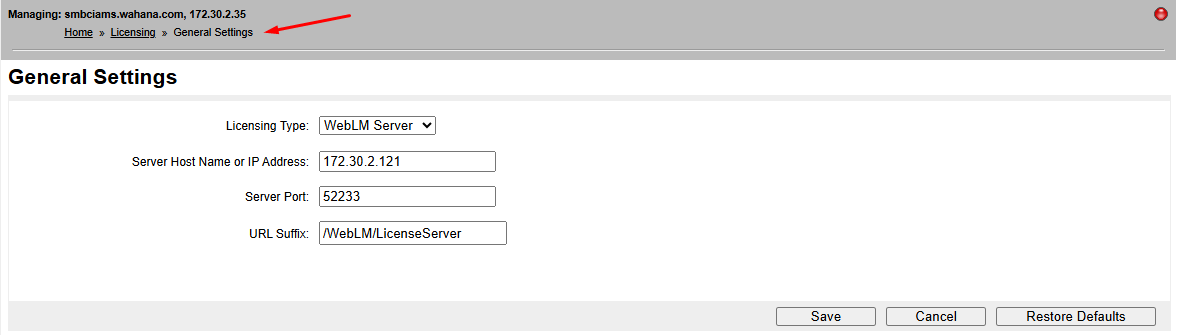
¶ Assign License
¶ Restart AMS
from linux command type reboot and answer yes
[root@smbciams bin]# reboot

Server restarting will affect service on the machine. Do you want to continue? [n] y
[root@smbciams bin]#
¶ Verify configuration
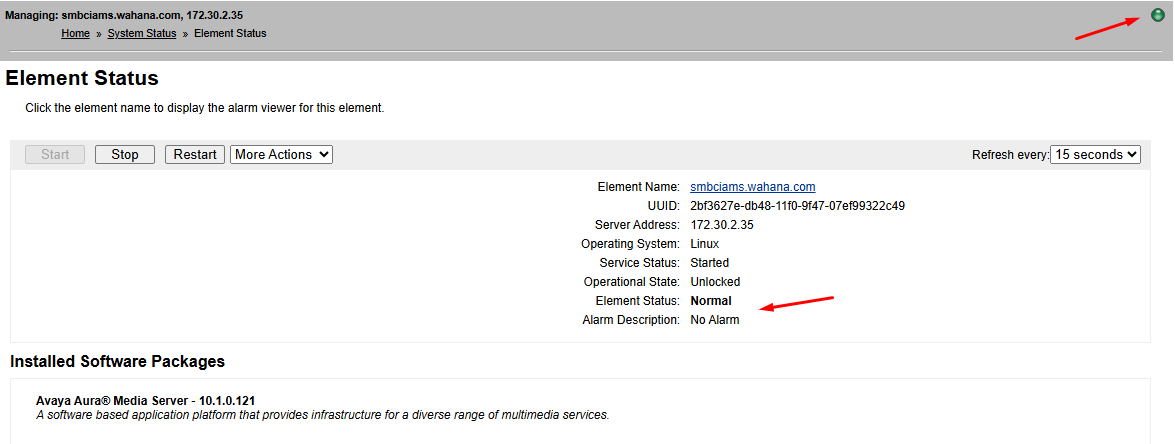
From System Status > Element status, verify green light on upper right corner and no alarm
Elemenet status = Normal
¶ Add Media Server Cluster on SMGR
¶ Verify Media server cluster added automatically
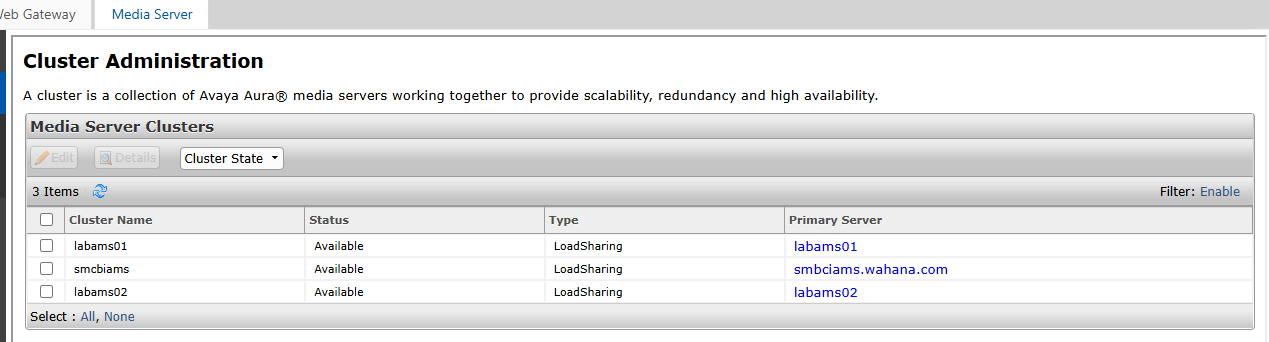
via enrollment process from media server, AMS will autolmatically registered on Media Server Cluster
¶ Set Media Server location
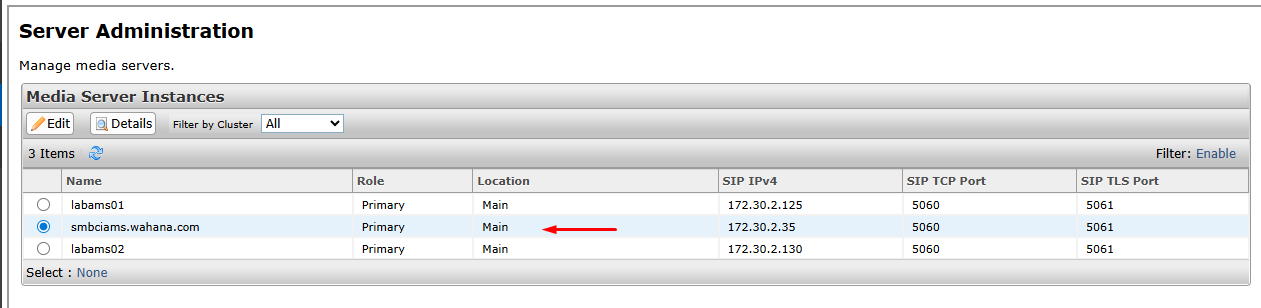
from server administration menu, select media server, set location
¶ Media server application assignment
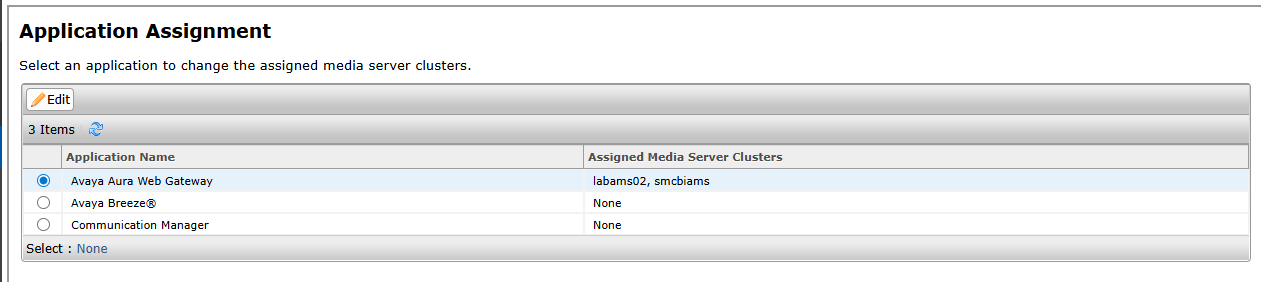
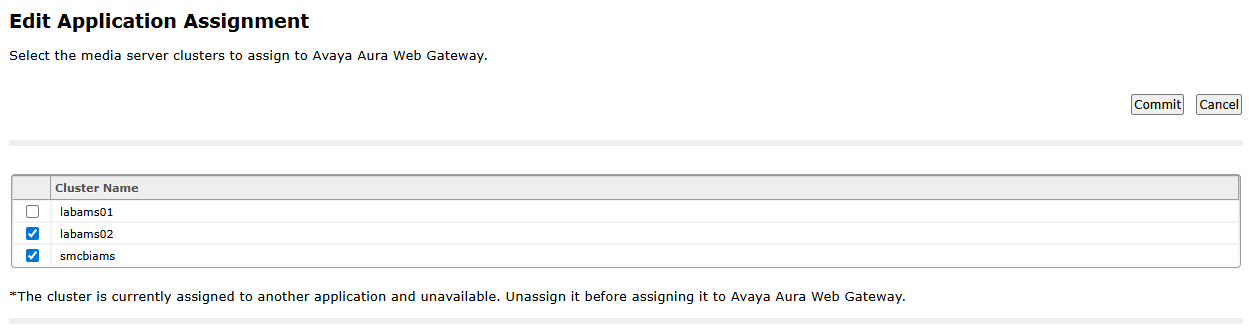
Select Avaya Aura Web Gateway, edit, select media server assign media server to aawg
¶ missed: sip node and routes?
¶ Configure TURN/STUN
Enable TURN/STUN Services:
For external access and handling restricted networks, configure TURN/STUN services. Avaya often recommends using client-side TURN services via the Avaya Aura Web Gateway (AAWG).
Log in to the AAWG administration portal and navigate to External Access > Session Border Controller.
Select the Enable TURN in WebRTC client check box.
Add the STUN server configuration to the AAWG to provide clients with the necessary relay information.
Configure Signaling and Security:
Enable TLS mutual authentication in AMS under System Configuration > Signaling Protocols > REST > General Settings.
Configure the appropriate SIP entities, routing policies, and signaling groups within System Manager and Communication Manager to direct WebRTC traffic to the AMS.
Ensure all necessary firewall ports (e.g., specific UDP port ranges for media, TCP ports for signaling) are open as per the Avaya documentation.