¶ Managing Media Server Certificates using SMGR CA (Root-CA/Sub-CA)
Media Server is not sending the ca certificates together with the identity certificate using the web interface on port 8443. In case of sub- ca signed certificates the Chrome browser is showing a insecure connection, because the intermediate / sub-ca certificates are missing inside the chain of trust. Per RFC a server must send the ca certificates together with the identity certificate. Only the root certificate can be omitted.
Media Server is not sending the ca certificates also if the PKCS12 or CSR methods are used to replace identity certificates.This is an issue and should be investigated by product house. If a customer complains about this issue a ticket should be opened.
¶ High level tasks
One of the configuration steps of Media Server is doing a System Manager enrollment process. Media server enrollment in System Manager assigns a System Manager signed certificate to the media server OAM and EM service profiles.
Please note that the SCEP enrollment process is not the same a System Manager managed Elements. The certificates will be managed still on the EM Interface of the Media Server.
¶ Preparation before enrollment process
- Ensure that a Media Server cluster is already configured.
- Ensure that you have the following Avaya Aura® System Manager information available:
- Fully Qualified Domain Name (FQDN) of the System Manager server.
- System Manager HTTPS server port. The default port is 443.
- System Manager administrative account username and password. The specified user account must be a member of the System Administrator groups.
- Enrollment password for System Manager Trust Management.
- The FQDN of the Media Server must have the same parent domain as the System Manager FQDN for Single Sign on to work.
- Ensure that there is network access between the media server and System Manager.
- Ensure that the FQDN of each media server in the cluster can be resolved by DNS or the local hosts file.
- Ensure that the FQDN of System Manager can be resolved by DNS or the local hosts file.
¶ Enrollment Process
As Avaya Media Server needs to be integrated into System Manager we need to enroll the Media Server in System Manager.
-
In a web browser, type the following URL: https://serverAddress:8443/emlogin, where serverAddress is the address of Avaya Aura® MS. For example, https://172.30.2.125:8443/emlogin.
-
Sign into EM by using the user ID and password set during product install
-
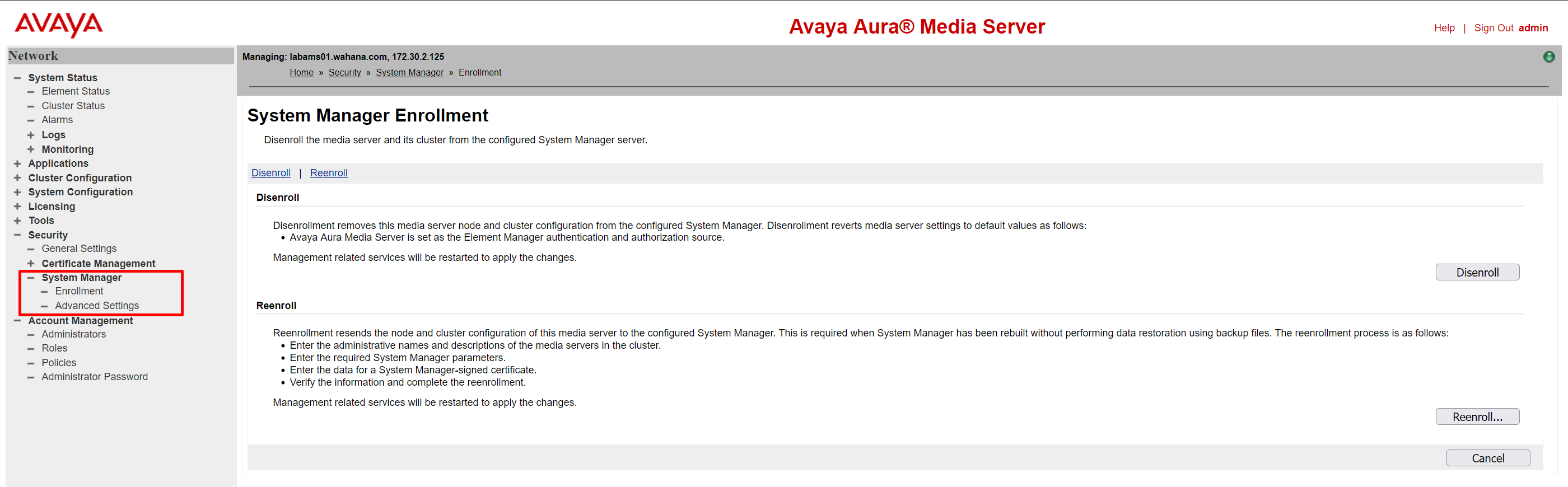
For the Primary node of the media server cluster, navigate to EM > Security > System Manager > Enrollment. EM displays a page describing the enrollment process.
-
Click Begin Enrollment. EM displays step one of the enrollment process.
-
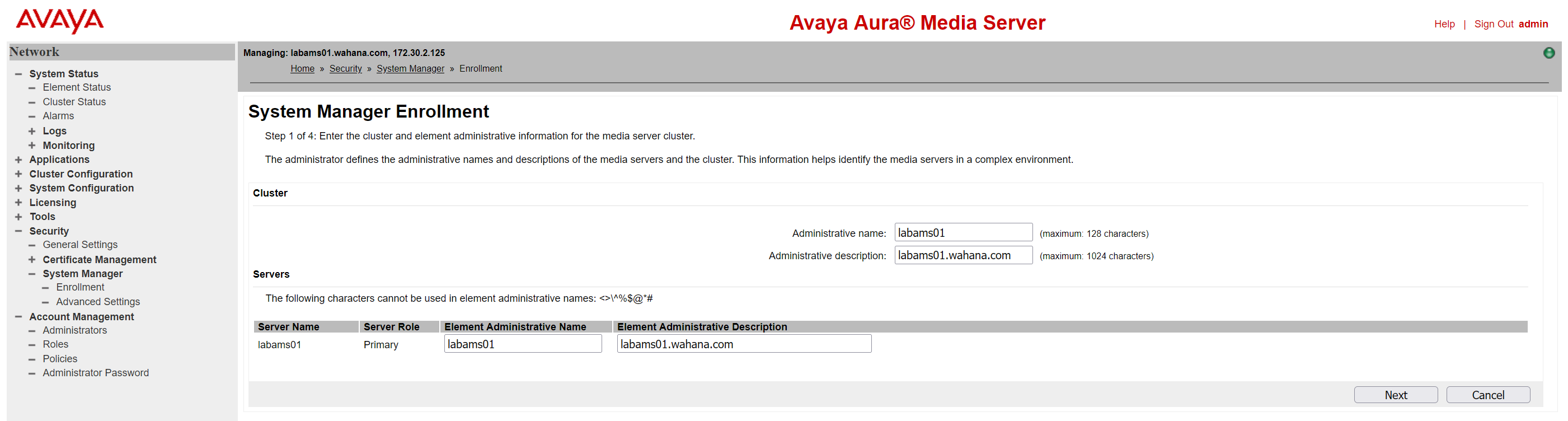
In the Cluster section, type the Administrative name and Administrative description for the media server Cluster. Administrative name is a name of your choice that helps you easily identify this cluster.
This value must be unique among all media servers enrolled with System Manager. After enrollment, this value can only be updated using System Manager.
Administrative description is a definition of your choice that helps you easily describe this cluster. After enrollment, this value can only be updated using System Manager. -
In the Servers section, type the Element Administrative Name and Element Administrative Description for each server. Element Administrative Name is a name of your choice that helps you easily identify this server.
This value must be unique among all media servers enrolled with System Manager.
This value cannot be updated after enrollment. Element Administrative Description is a definition of your choice that helps you easily describe this server. This value cannot be updated after enrollment.
-
Click Next. EM displays step two of the enrollment process.
-
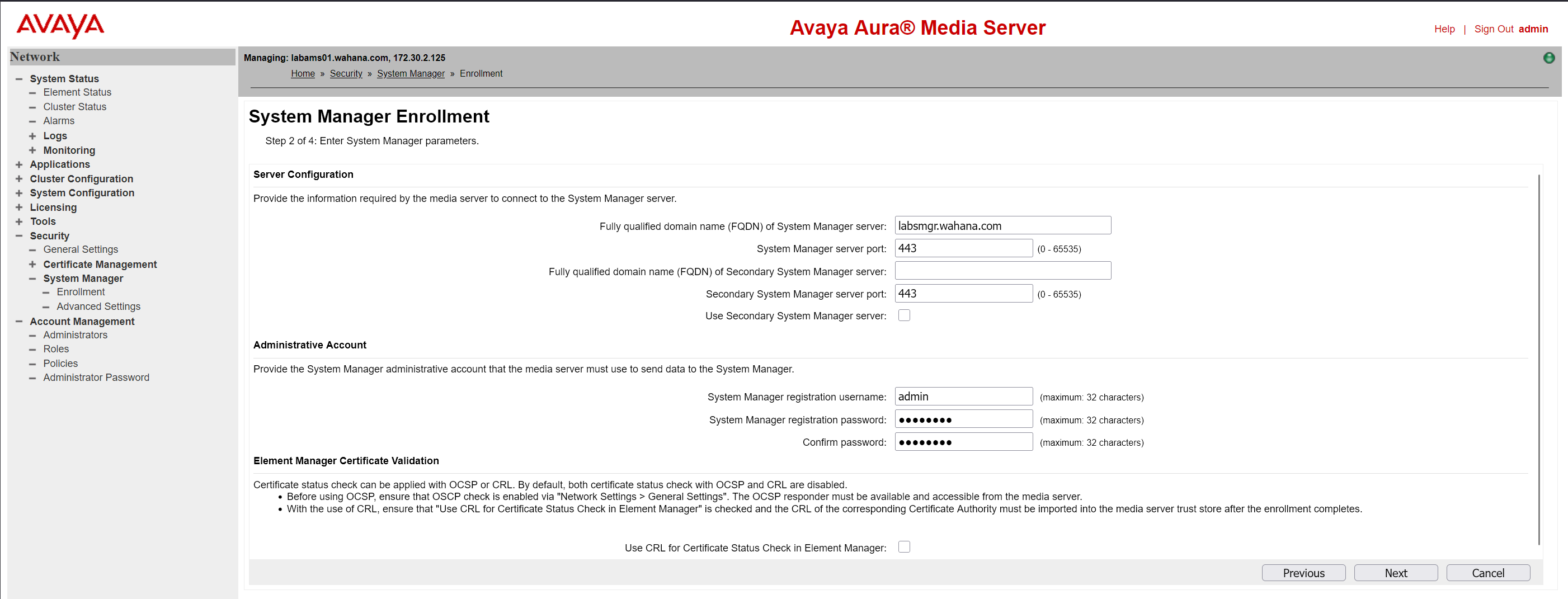
In the Server Configuration section, provide the FQDN and port for System Manager. The Secondary System Manager configuration fields are optional. The default System Manager port is 443.
-
In the Administrative Account section, provide the System Manager administrative account credentials required to register the media server. Enter for e.g. the admin Login credentials.
-
Click Next. Avaya Media Server will validate the certificates of SMGR and will display a warning in case the certificates are not yet trusted.
-
Validate the certificates and click Acknowledge to trust those certificates. In case of System Manager is configured as sub-ca there will be at least 3 certificates displayed. Acknowledge them all.
-
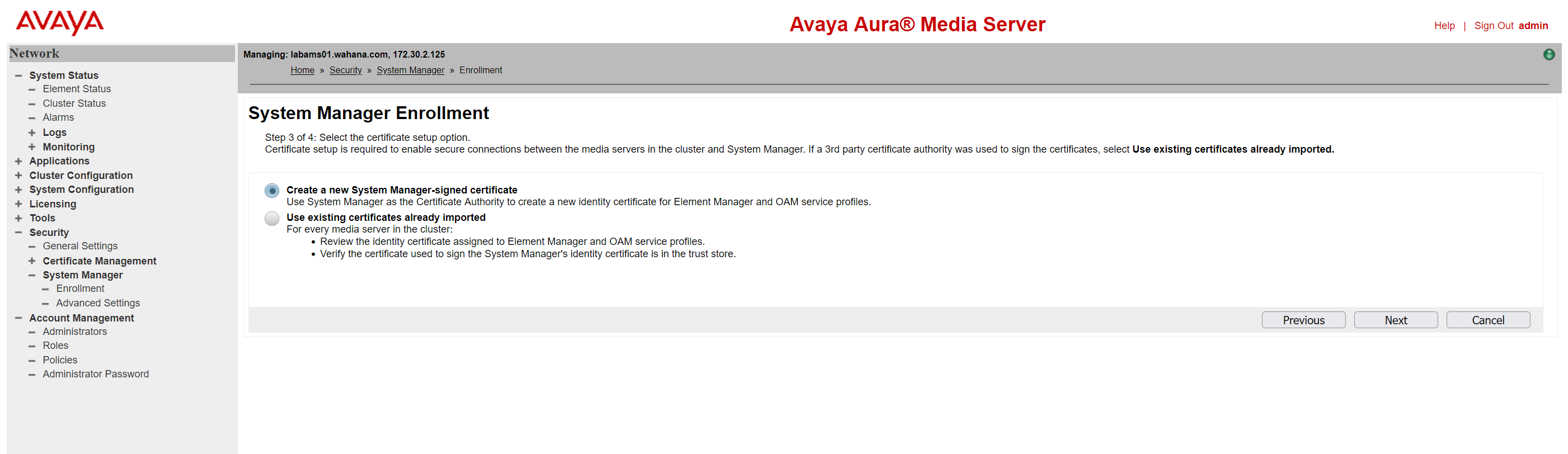
Select Create a new System Manager-signed certificate and click Next.
-
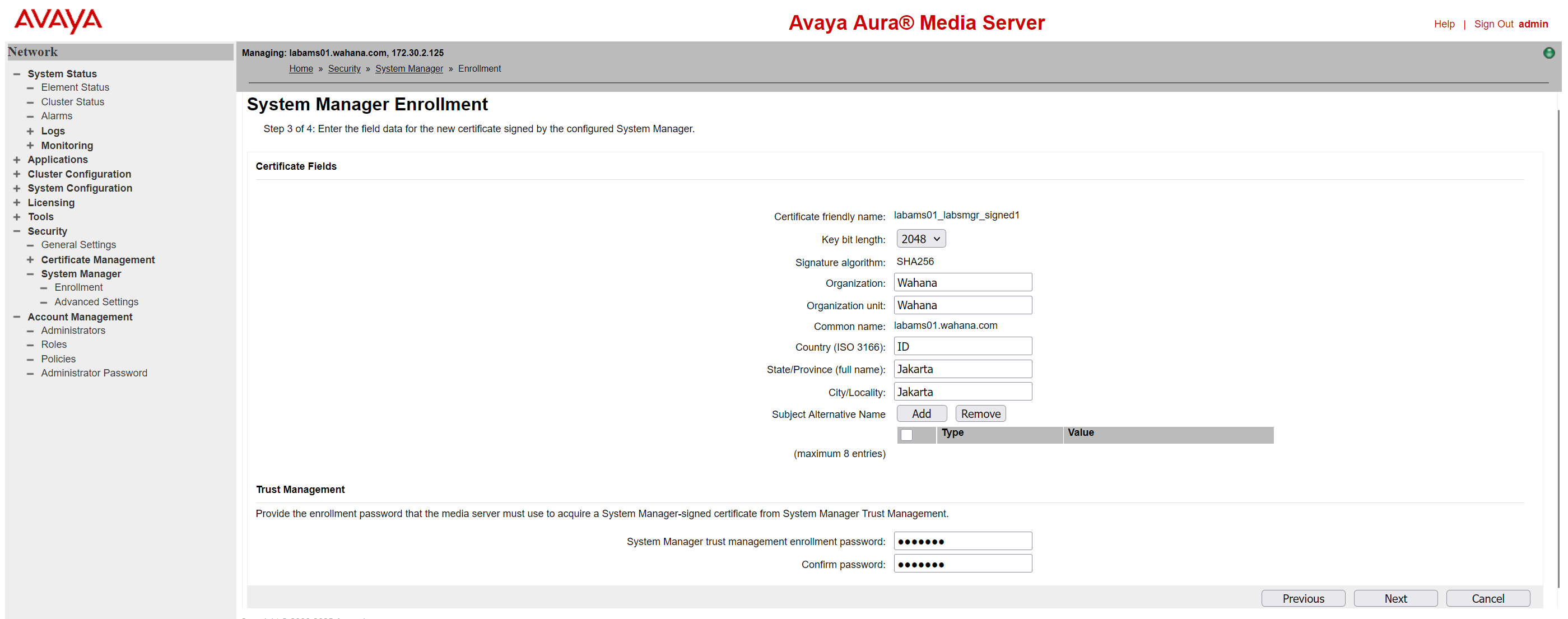
Perform that following actions at step 3:
- Check that Key bit length is 2048.
- Enter proper values for all distinguished name fields. E.G. use values from screenshot.
- Select checkbox Include Subject Alternative Name with FQDN.
- Enter System Manager trust management enrollment password.
- Click Next.
-
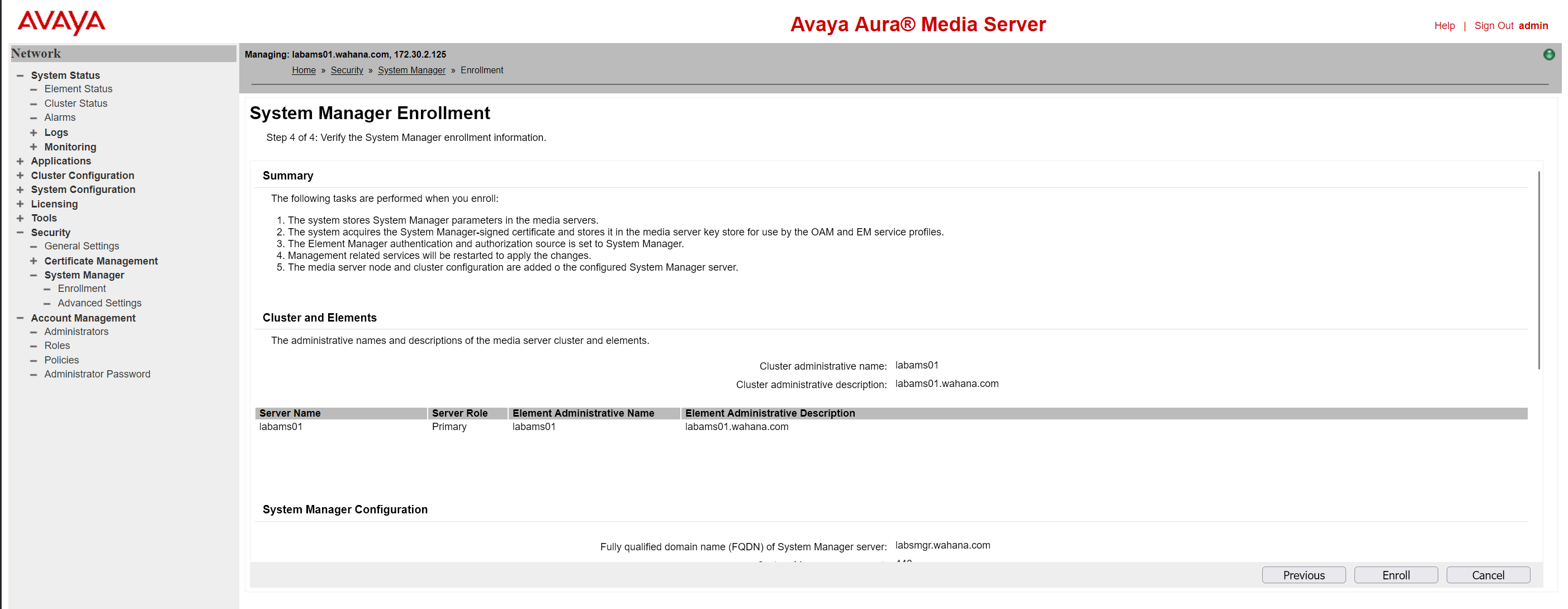
Validate all values and Click Enroll.
-
EM displays a progress spinner during the enrollment process. After the enrollment completes, the system restarts the media server SOAP service and EM.
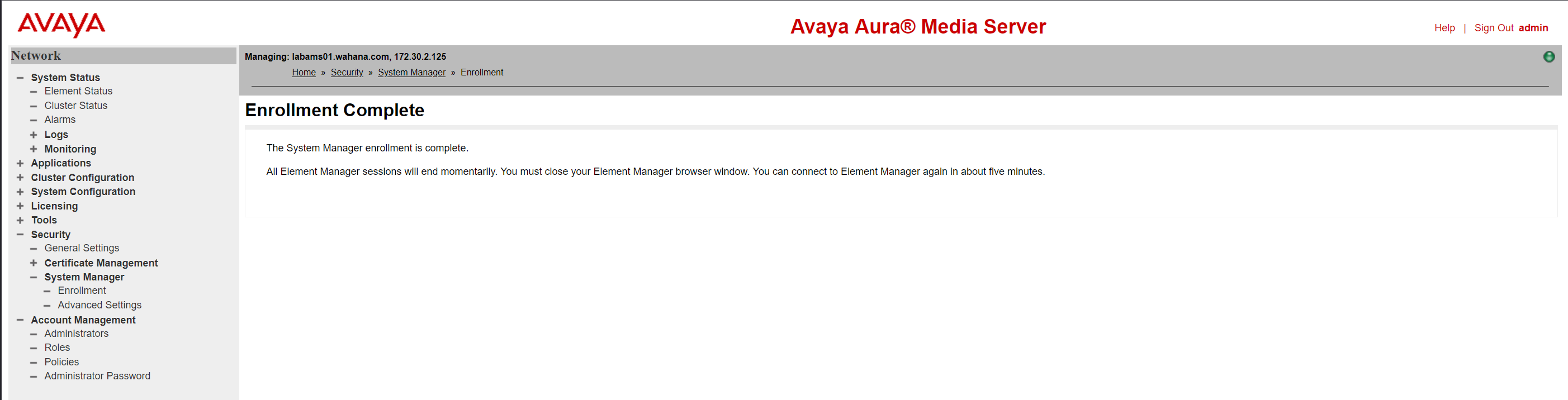
The Enrollment Complete screen is being displayed. Wait some minutes before login to Media Server again.
It's only possible to login through System Manager or you have to use the emergency login. https://ip-address:8443/emlogin.
-
Close the EM browser window or tab. Sign in again.

-
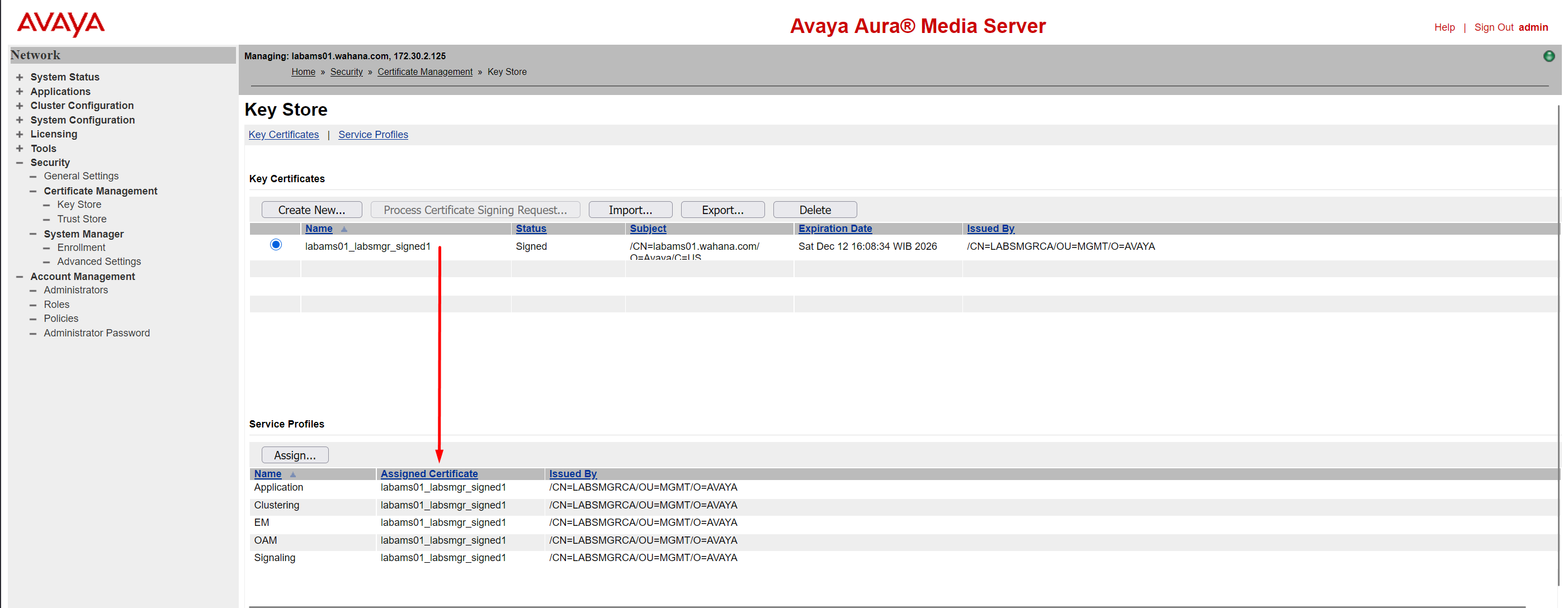
Verify that the new System Manager root certificate has been installed:Key certificate has been installed:
-
Verify the new created identity certificate (4).
Service Profiles EM and OAM have allready assigned the new created identity certificate (5). Click Assign to assign the new identity certificate to all Service Profiles.
-
Assign the new certificate to all the Service Profile and Save
-
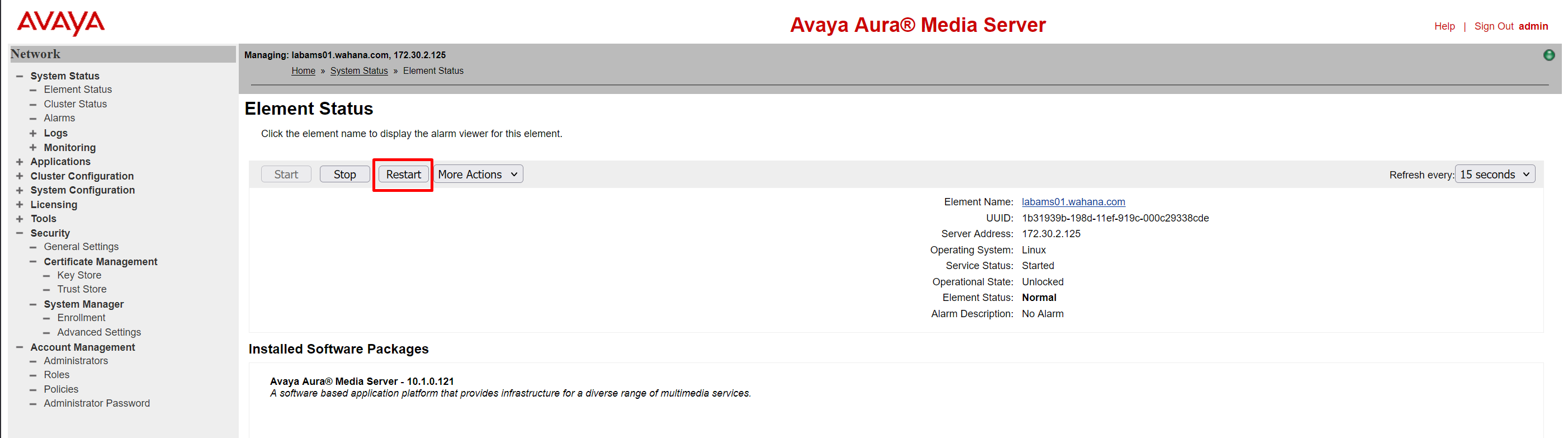
Open the Home-System Status- Element Status and Click Restart
-
Confirm the Restart
-
The Media Server should now use the new certificate on all Service Profiles.